What Podcast SOS does
Every part, in plain words, with what it needs.
Shows and episodes
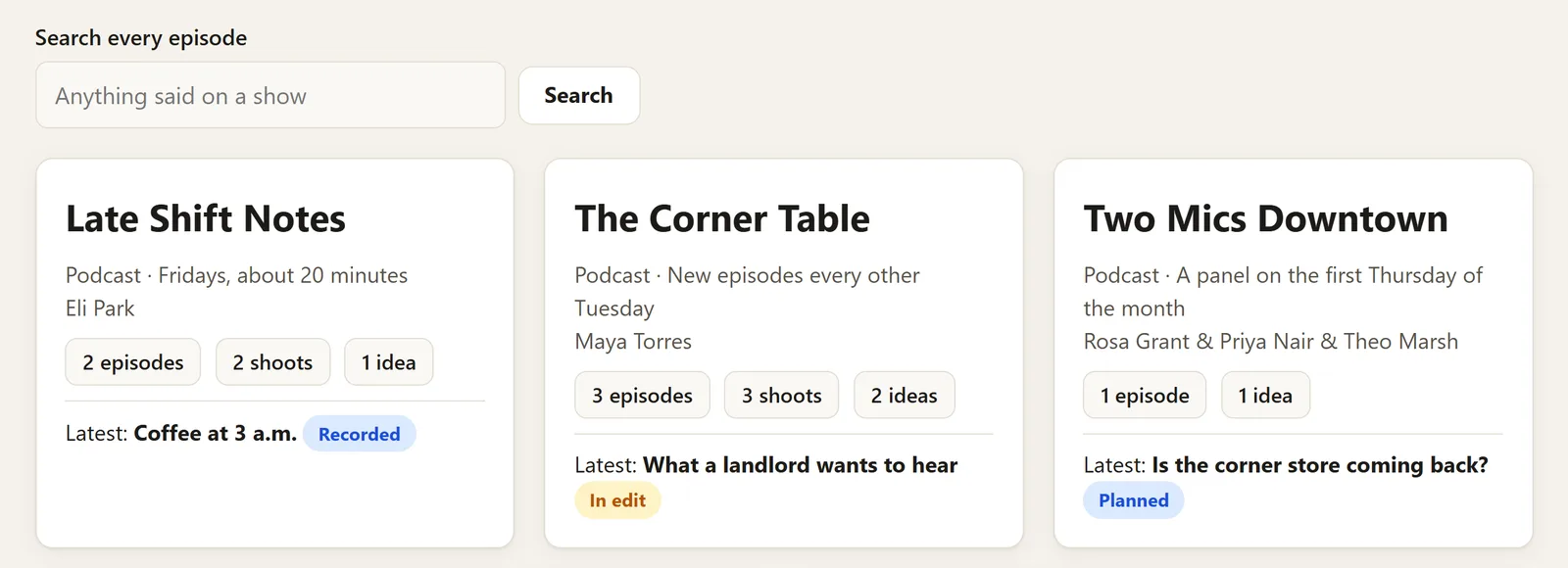
Showrunner is the front page. Each show has its episodes, the people on them, your ideas for future episodes and the files from each recording.
- Add shows for yourself or for the people you record. There's no limit on how many.
- Recordings stay where you keep them: on this PC, a network drive, or a Google Drive, Dropbox or OneDrive folder.
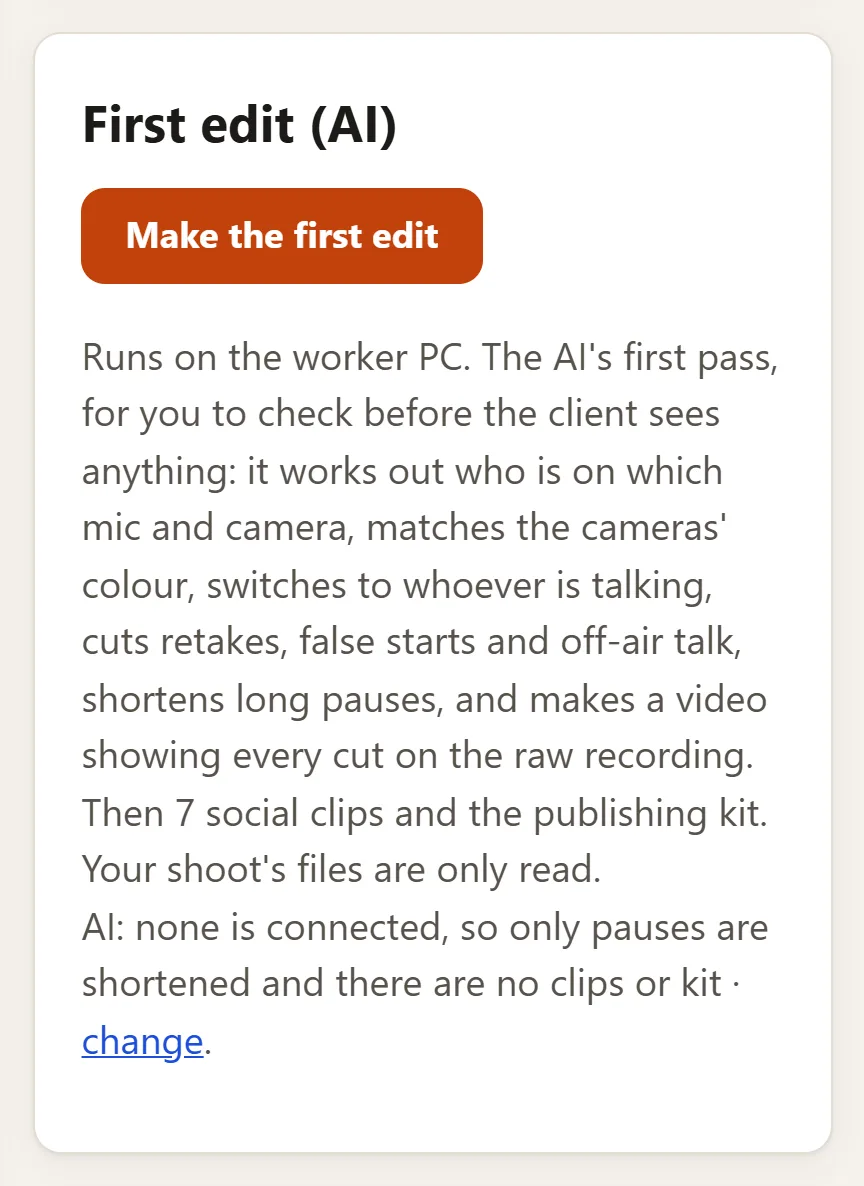
- Each episode keeps its transcript, and search looks through every transcript at once.
What it needs: Nothing extra. No AI.
One-button edit prep
On an episode's page, press Make edit prep. Podcast SOS copies the recording's files and works through them on your PC:
- Lines up every camera and mic by their sound, so nothing needs timecode.
- Cuts between cameras by who is talking, using each person's mic, and saves the cut as a Premiere timeline.
- Writes the transcript with speech-to-text that runs on your PC.
- Finds the ums, uhs and curse words, and makes a bleeped and an ums-out version of the sound.
- Makes word-by-word captions, as a video layer and as an .srt file.
- Picks short moments for social and makes vertical clips with captions.
- Writes edit notes: chapters, suggested cuts, title ideas and pull quotes.
For an audio-only show it takes one sound file and makes the transcript, an ums-out edit, show notes and audiogram clips with your show art.
How long it takes: on a desktop with an NVIDIA RTX 4070 Ti SUPER graphics card, about 25 minutes for a two-hour show with three cameras.
What it needs: Each camera has to record some sound. The camera cut needs each person on their own mic track. Picking clips and writing notes need an AI; without one they're skipped and the rest is still made.
A first edit to start from
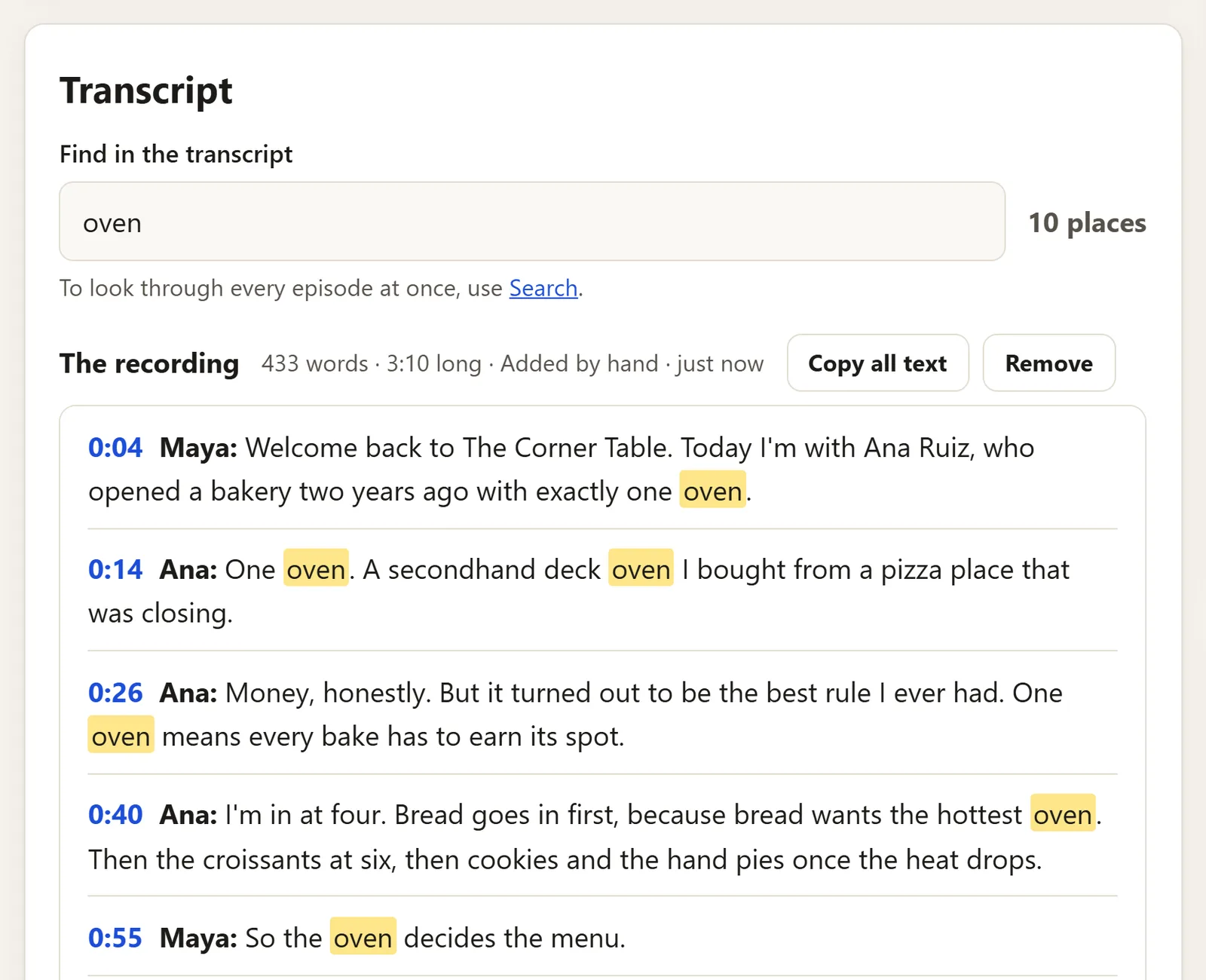
Press Make the first edit and Podcast SOS cuts a first pass: retakes (it keeps the last take), false starts, talk that wasn't meant for the show, and long pauses. Each cut is snapped to the sound so words aren't clipped.
Then you review it. What the AI changed shows each cut against the raw recording, with Put this back and Cut it buttons. A person makes the final edit: you or your editor.
What it needs: An AI you connect, and a strong one makes better cuts. With no AI it only shortens long pauses. It doesn't move parts around yet, so a redone intro stays where it was recorded.
Send to an editor
Working with an outside editor? Press Send to an editor on the episode. You get one folder with:
- copies of every camera and mic, with the sound files padded so they all start together
- timelines for Premiere and Audition that put every file in its place
- a sync sheet that marks each file as sure, check by ear, drifts, or not lined up
- a plain README for the editor
What it needs: Nothing extra. No AI.
Show websites
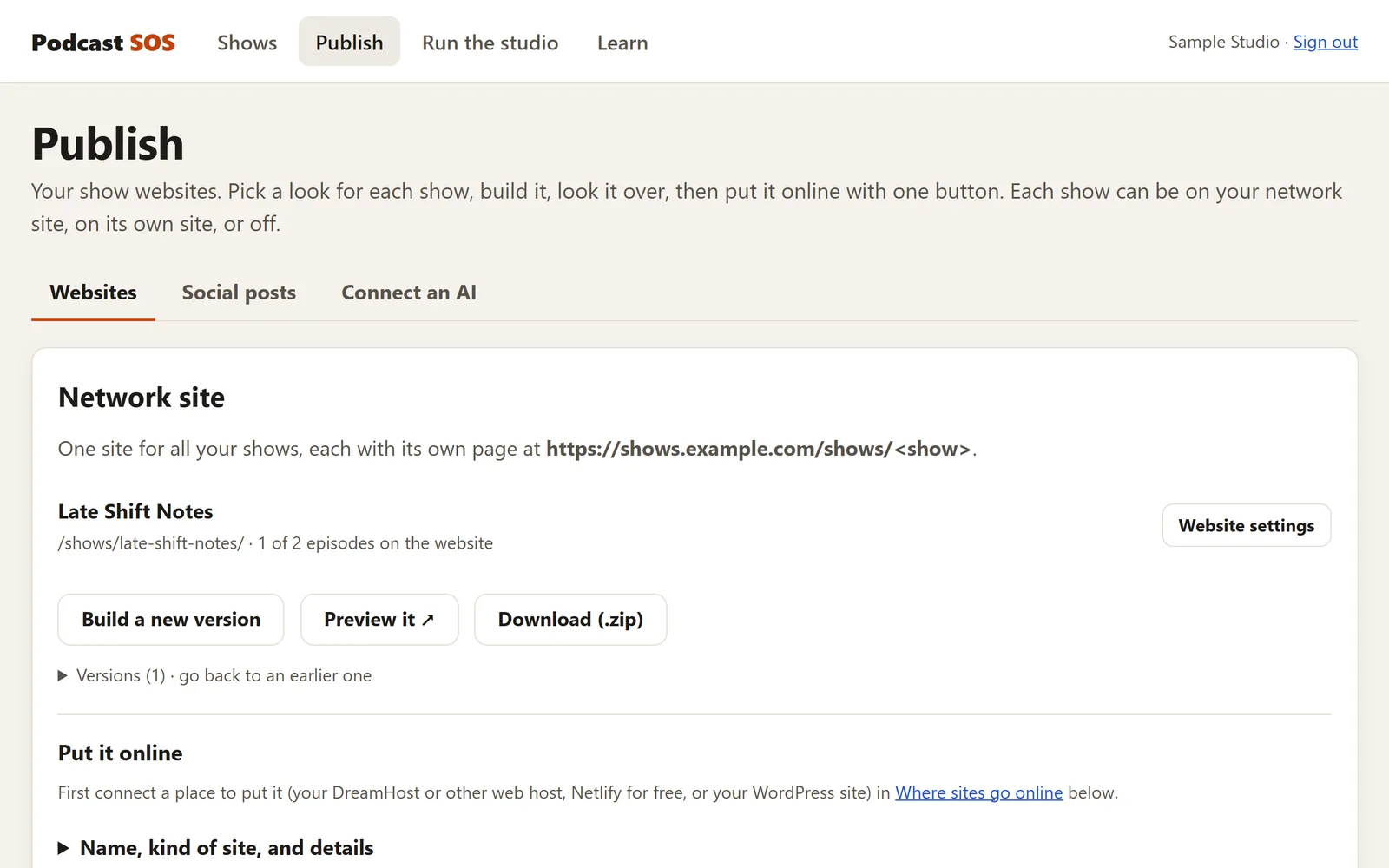
Turn any show into a website.
- Four looks: Clean, Spotlight, Grid and Classic. Studios also get a business layout with services, prices and a booking link.
- Add cover art, a logo, your colour and listen links. Colours are checked so the text stays readable.
- Each episode gets its own page with show notes and chapters.
- Already on a podcast host? Paste your RSS feed address and the episodes fill in by themselves, checked every hour.
- Preview before it goes out, and go back to the last version if you change your mind.
- Upload with one button to DreamHost or any host that takes SFTP, Netlify or WordPress. Or download a .zip and upload it anywhere.
What it needs: A web host for the site, on your own account. No AI.
Run the studio
One page for the room while you record.
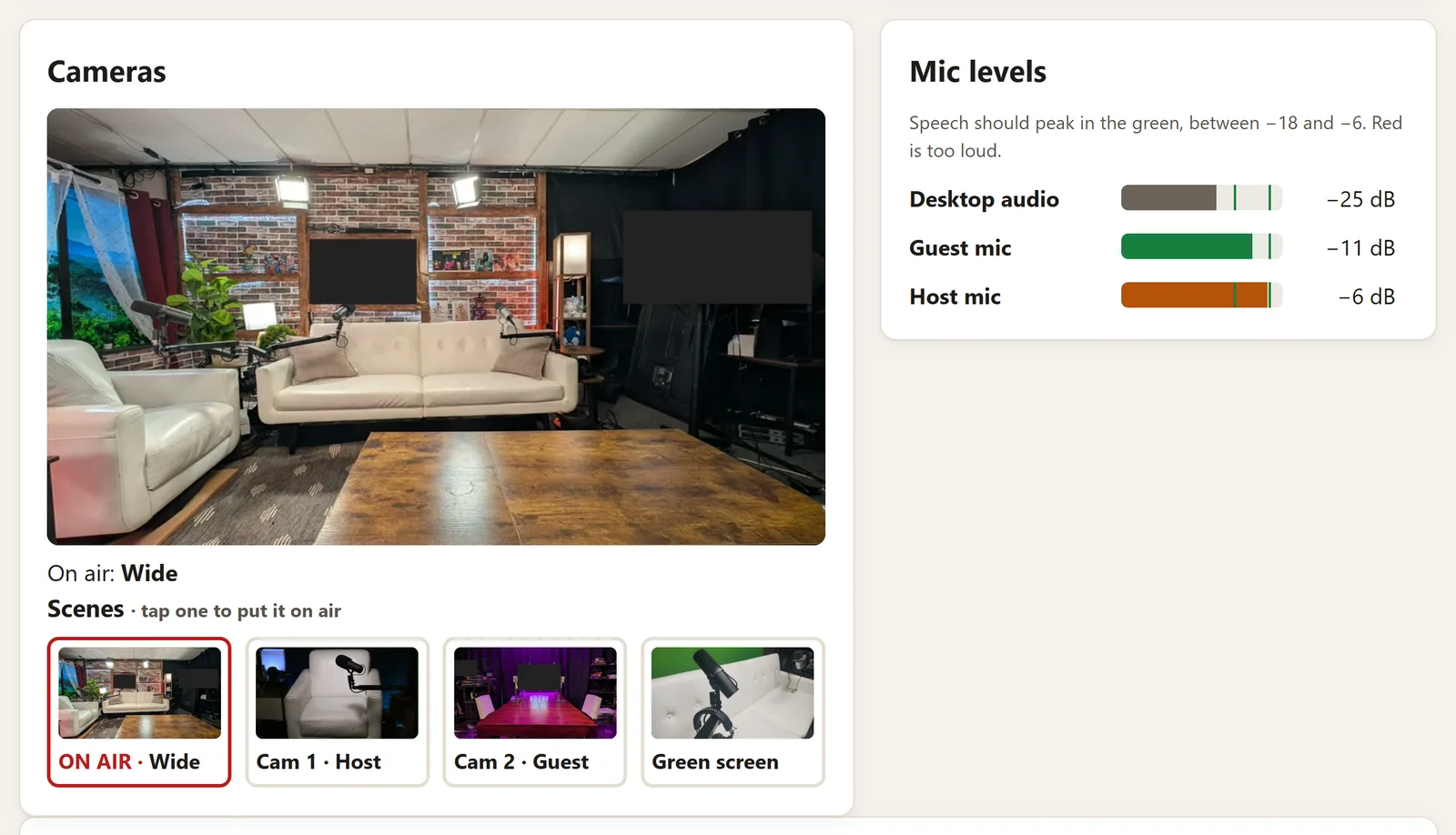
- Pictures from each OBS scene, updated every couple of seconds, and scene switching from the page.
- Mic levels, with muted and clipping mics flagged.
- Start and stop the recording (stop asks first), with the running time, free disk space, hours left and dropped frames.
- Your Bitfocus Companion buttons on the page, so lights, cameras and anything else Companion runs are a click away. Any button can ask first.
- Mark Good take, No good or a note while you record. Each mark has the recording's time, and you can copy them out as markers for your editor.
- Keep a scene off air: name it, and the page won't switch to it.
What it needs: OBS Studio (free) for scenes and recording. Bitfocus Companion (free) for buttons. One location.
Go live
When the show is live, start the stream from Run the studio.
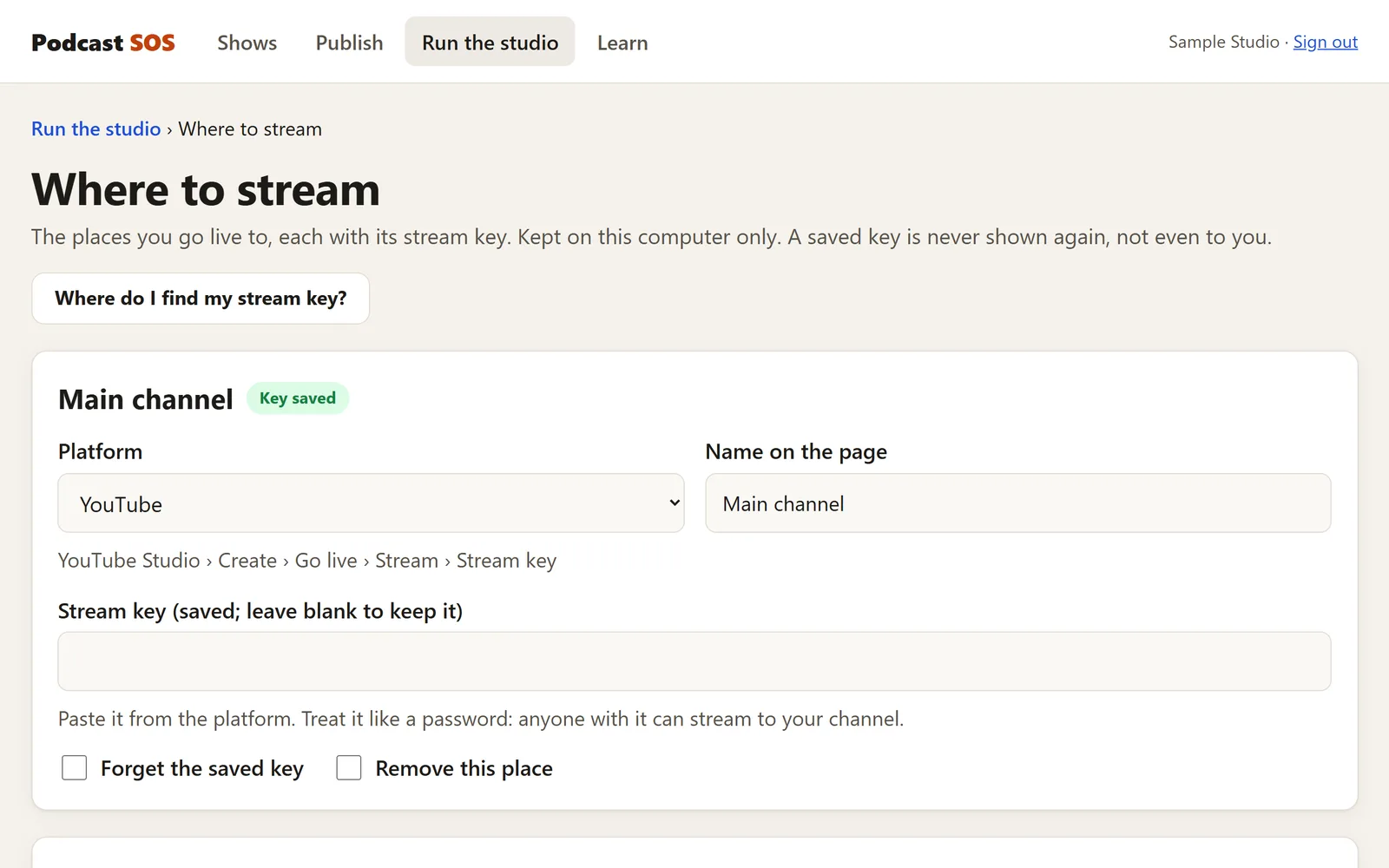
- Save where you stream once: YouTube, Facebook, Twitch, or any RTMP address. That includes relay services that send one stream to several places.
- Start and end the stream with a big are-you-sure, so nobody goes live by accident.
- Stream keys stay on your PC and never show on a page.
What it needs: OBS Studio. One place at a time; for several at once, use a relay service.
The Learn guide
A plain-words guide to setting up a podcast, built into the app.
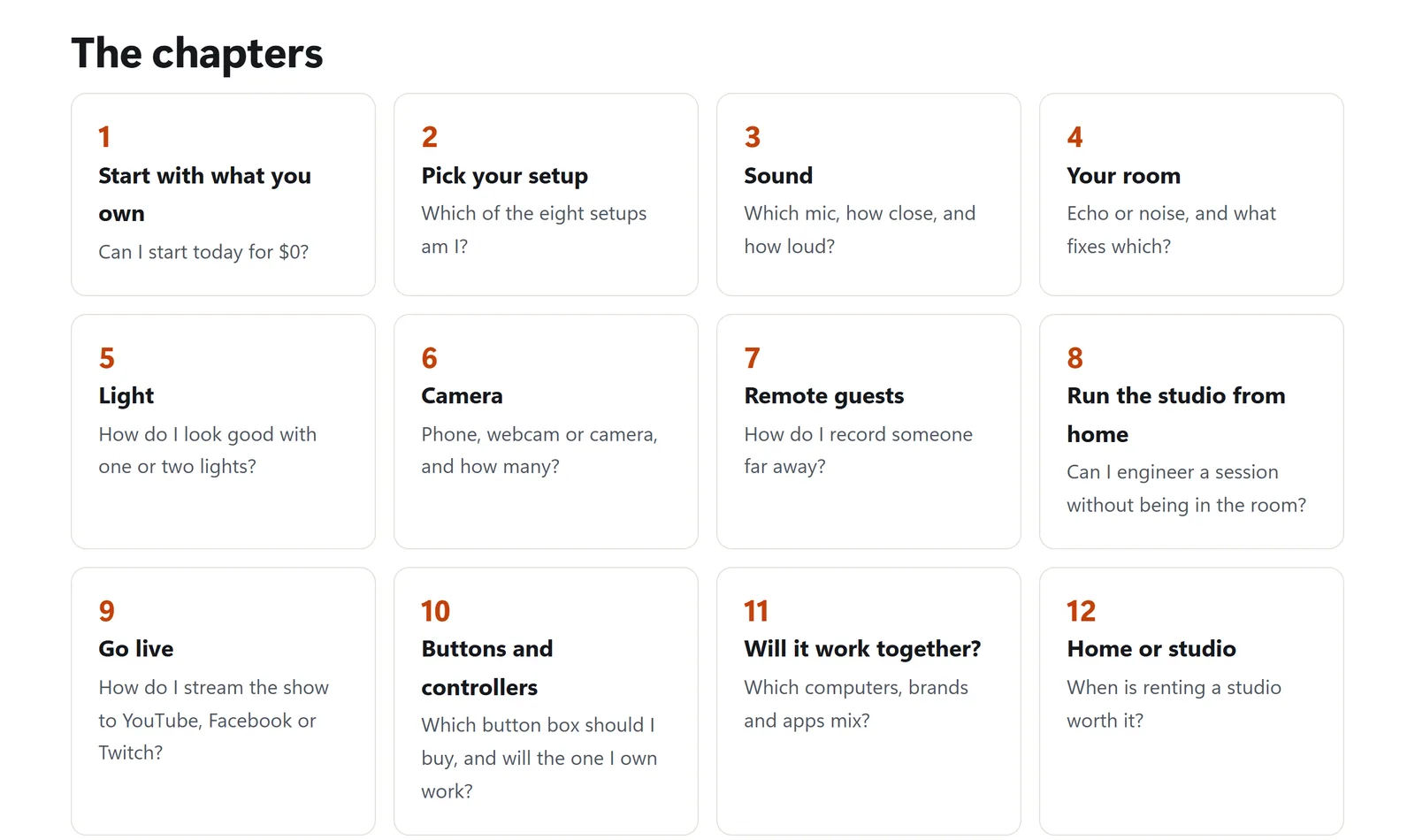
- 14 chapters, from what you already own to finishing the episode: setups for one to four people, sound, your room, light, cameras, remote guests, going live, and buttons and controllers.
- Price your setup adds up what you'd spend.
- Will it work together? checks that your pieces connect.
- Buttons and controllers compares 29 controllers and which ones work with Companion.
What it needs: Nothing.
Not in it yet
Podcast SOS doesn't do these today:
- upload episodes to a podcast host or to YouTube
- post to social apps by itself
- let clients review edits online
- control several rooms from one screen
- notice new recordings in a folder and start the episode by itself
- run on a Mac
If one of these matters to you, ask before you buy: hello@podcastsos.com
Social posts
Each short clip from edit prep lands on its episode, ready to post.
What it needs: An AI writes the posts. With no AI, each post starts from what was said in the clip, and Copy the prompt gives you the full request to paste into any chatbot. You do the posting.